CONEWER Owner guide Help My store page
Store page guide

Put your store on the map

Set up your store page in about 5 minutes, right from your phone. Every CONEWER user nearby will see your logo, what you sell, and get directions to your door.

About 5 minutes Free with your unit All from your phone

Before you start, have these ready

Your logoA square picture works best.
A store photoYour store front, nice and bright.
Your productsNames and prices of what you sell.
Your hoursWhat time you open and close.
Be at your storeFor step 7, so the pin lands on your door.
1

Open your store page

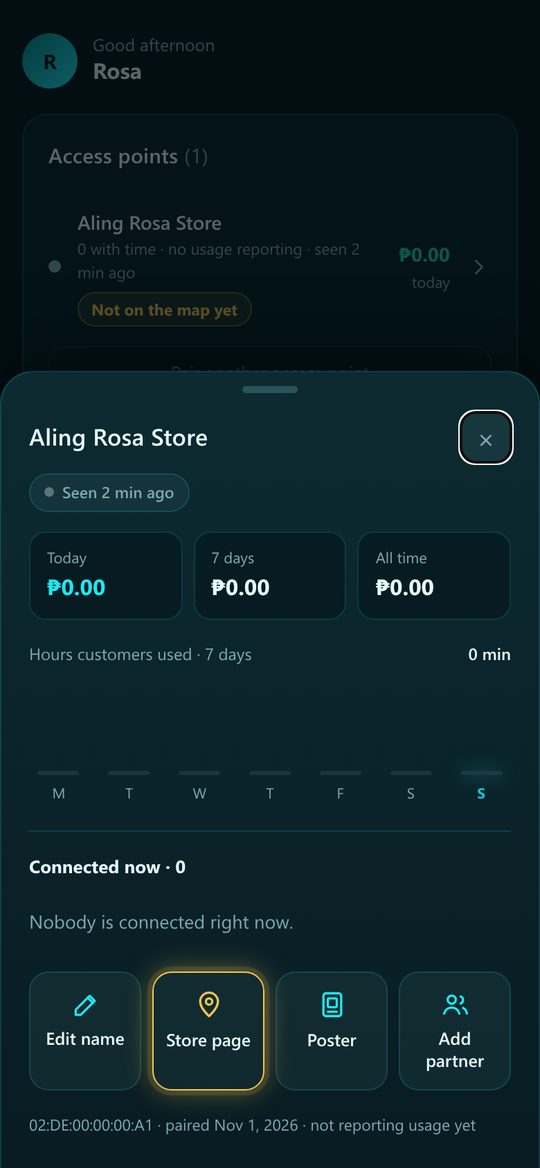
Open the CONEWER owner app. On Home, look for the card “Put your store on the map”.

  • 1Tap Set up my store page.
  • 2Or go to Access points, tap your unit, then tap Store page. It glows gold until your store is on the map.
Units without a pin show “Not on the map yet” in your Access points list.
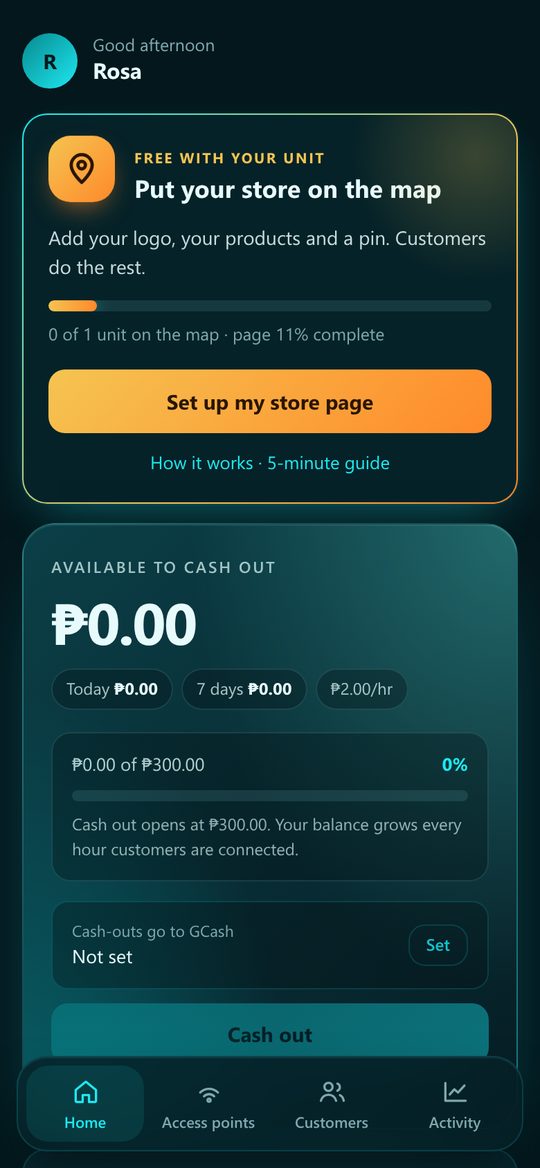
Owner app Home with the Put your store on the map card

Home

Access point details with the glowing Store page button

Access points › your unit

Swipe for the next screen ›
2

Check which unit you’re editing

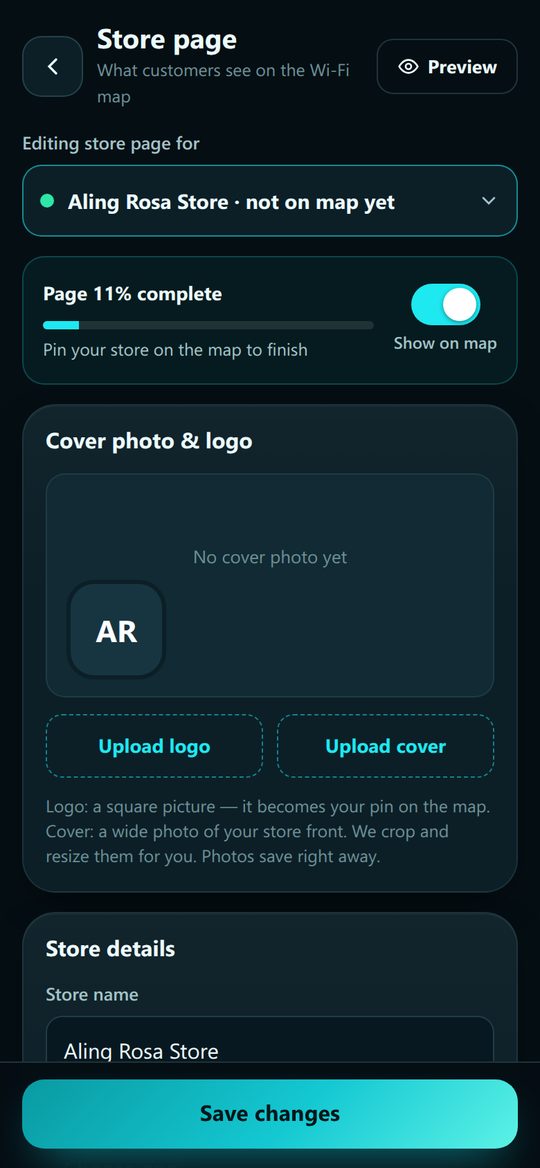
At the top you see the unit’s name. Have more than one unit? Tap it to switch.

  • 1The progress bar shows how complete your page is, and what to do next.
  • 2Keep Show on map switched on so customers can find you.
Store page editor showing the unit name, progress and Show on map switch
3

Add your logo and store photo

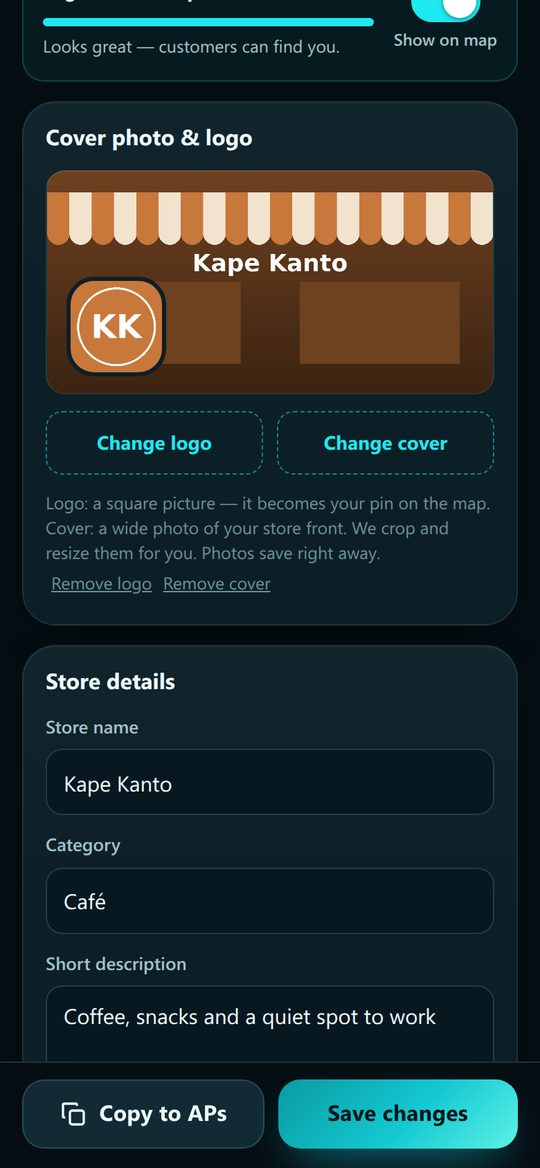
Your logo becomes your pin on the map. The photo is the cover of your store page.

  • 1Tap Upload logo and pick a picture.
  • 2Tap Upload cover and pick a photo of your store front.
No editing needed. The app crops and resizes them for you, and they save right away.
Cover photo and logo section with upload buttons
4

Fill in your store details

Tell customers who you are in a few words.

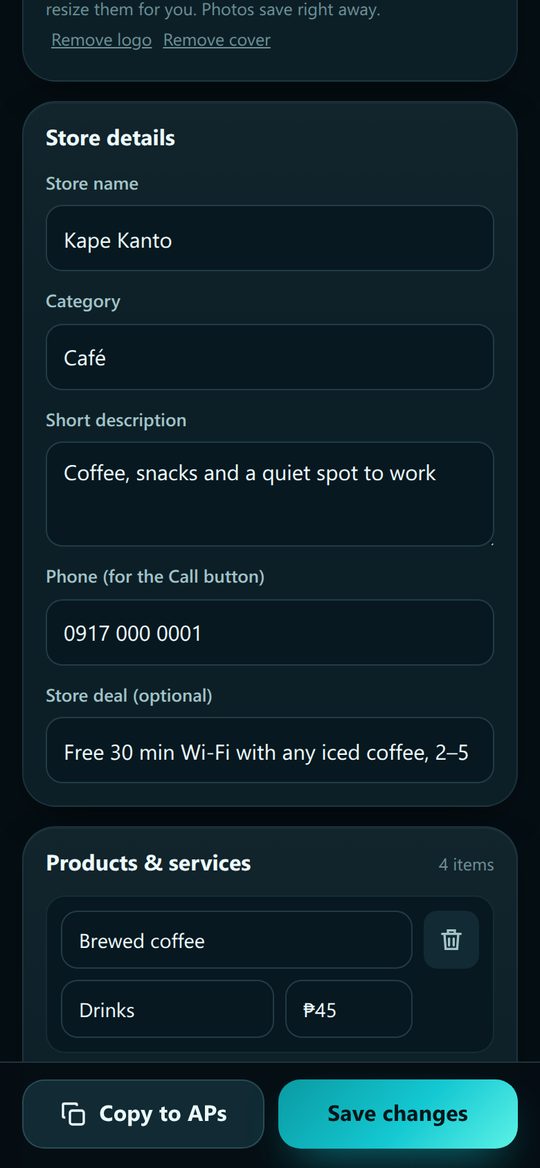
  • 1Store name: the name people know you by.
  • 2Category and a short description, like “Coffee, snacks and a quiet spot to work”.
  • 3Phone for the Call and Text buttons, and a store deal (optional).
Add a deal! It shows on your pin card for everyone nearby, e.g. “Free 30 min Wi-Fi with any iced coffee”.
Store details: name, category, description, phone and store deal
5

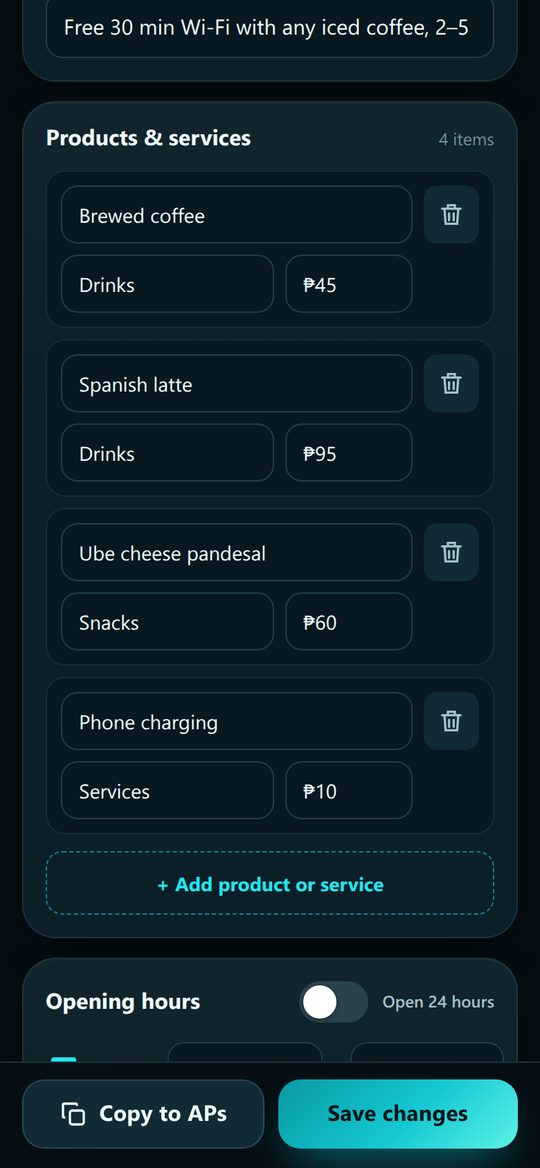
Add your products and prices

Show what you sell. Customers love seeing prices before they visit.

  • 1Tap + Add product or service.
  • 2Type the name, a group (like Drinks or Services) and the price.
  • 3Tap the trash icon to remove one. You can add up to 40.
Products and services list with prices and an Add button
6

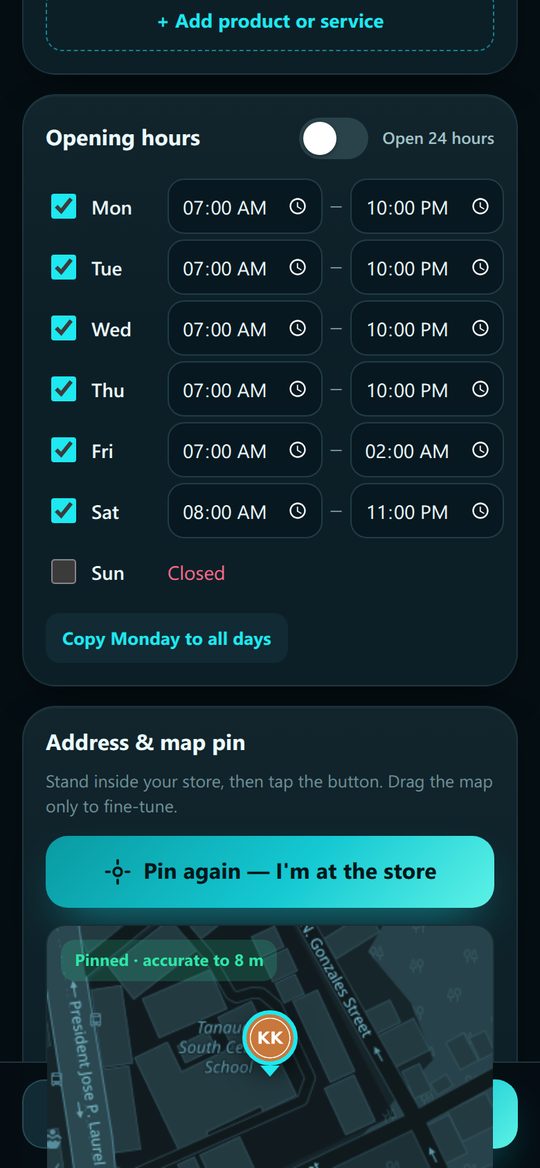
Set your opening hours

Customers see “Open now” or “Closed” on the map, live.

  • 1Tick the days you’re open and set the open and close times.
  • 2Same hours every day? Set Monday, then tap Copy Monday to all days.
  • 3Never close? Switch on Open 24 hours.
Opening hours per day with times
7

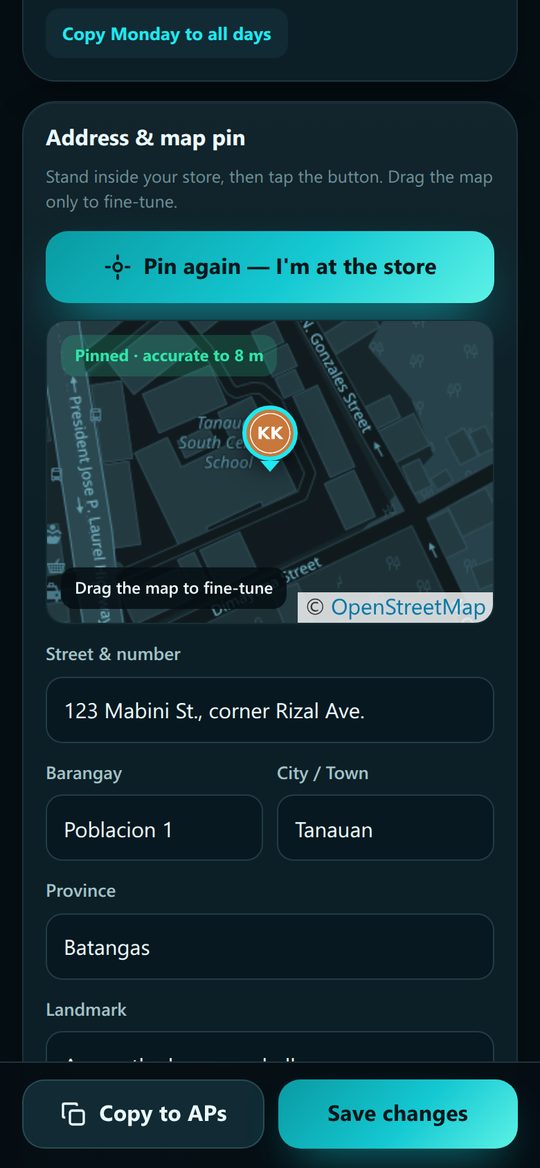
Pin your store on the map

This is the most important step. Stand inside your store before you tap.

  • 1Tap I’m at the store — pin my location.
  • 2Allow location if your phone asks. Wait a few seconds while it finds you.
  • 3Pin a little off? Drag the map until the pin sits on your door.
  • 4Check the address. Empty boxes are filled in for you; add a landmark.
See “Weak GPS”? Step near your door or a window and tap again.
Map pin set at the store, accurate to 8 metres
8

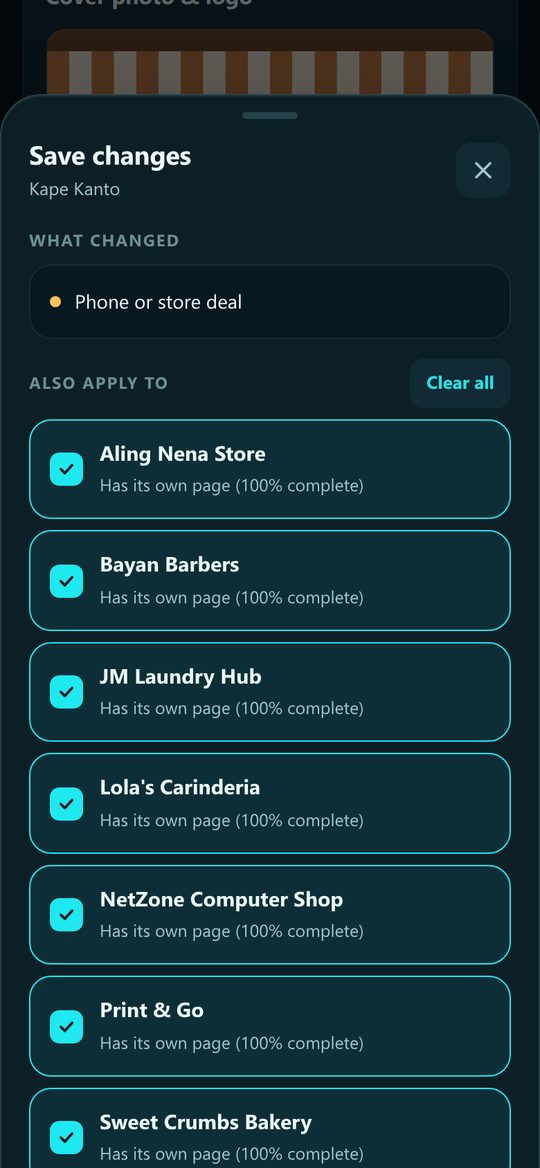
Tap Save. You’re on the map!

Tap Save changes at the bottom. Customers see your page right away.

  • 1The app shows what changed.
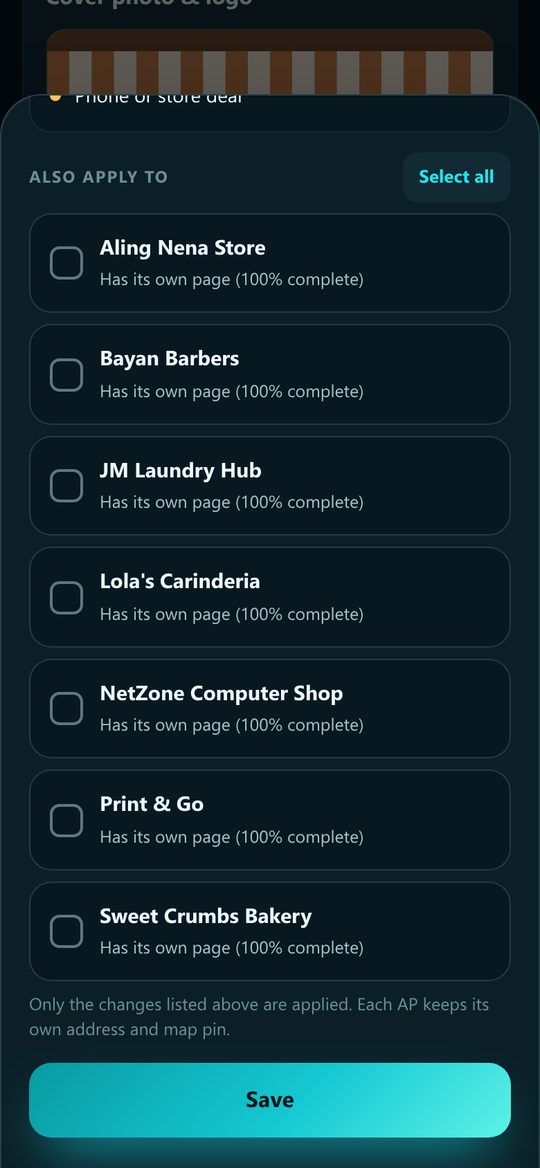
  • 2Have more units? Tick the ones that should get the same changes, or tap Select all.
  • 3Tap Save. Only one unit? It saves straight away.
Save changes sheet with Select all

Pick your units

The Save button

Save

Swipe for the next screen ›
9

See it the way customers do

Tap Preview at the top of your store page, or See it on the map on Home.

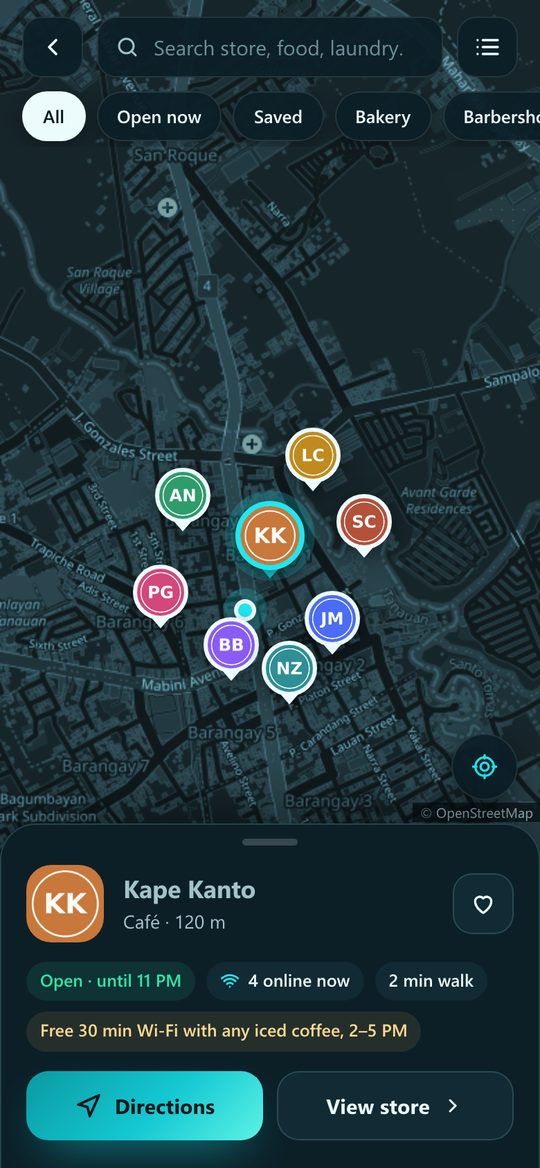
  • 1Customers tap your logo pin and see if you’re open, how many are online, and your deal.
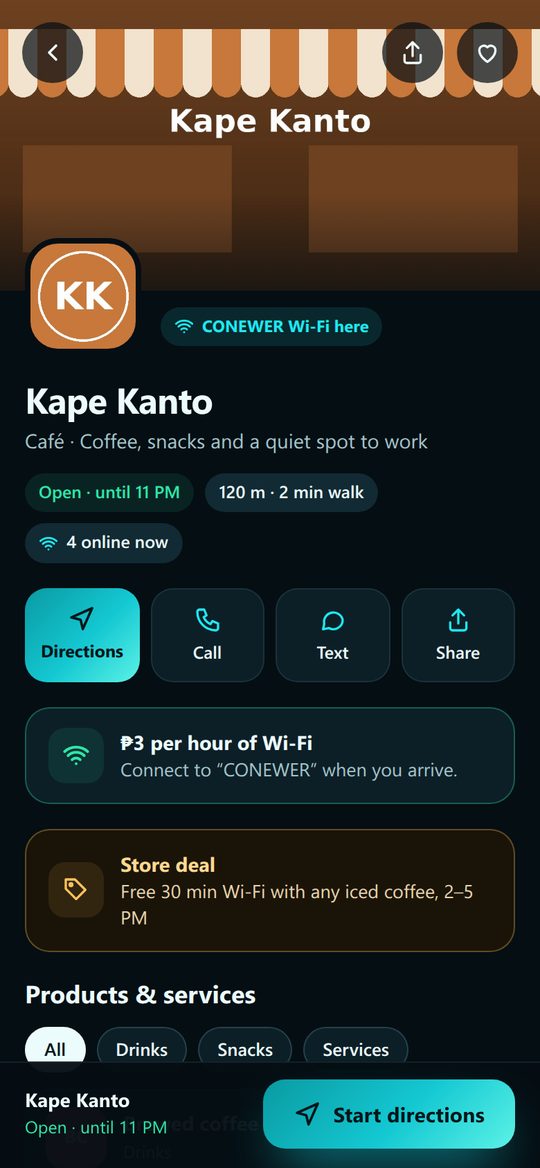
  • 2Your page shows your photos, products, hours and a Directions button to Google Maps or Waze.
Your store selected on the CONEWER map

On the map

Your store page as customers see it

Your store page

Swipe for the next screen ›

That’s it, your store is on the map!

Your Home card turns green: “Your store is on the map”.

More than one unit?

Set up one page, then copy it to your other units in one tap.

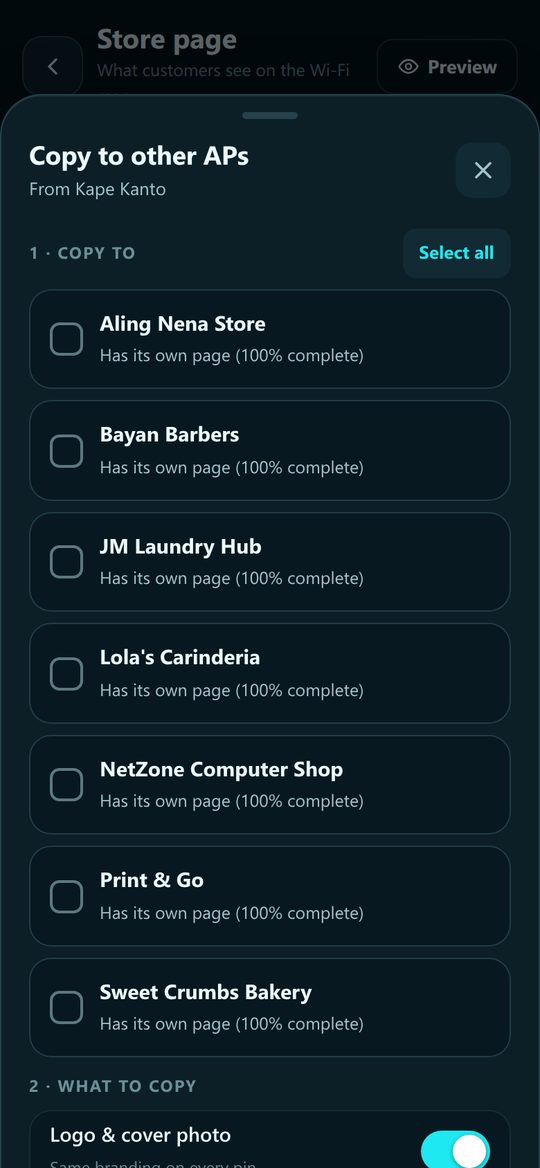
  • 1On your finished store page, tap Copy to APs.
  • 2Tick the units to copy to, or tap Select all.
  • 3Choose what to copy: logo & photo, details, products, hours, phone & deal.
  • 4Tap Copy. Then pin each unit at its own store (step 7).
The address and map pin are never copied, so every branch shows in the right place.
Copy to other APs sheet with Select all

Tips for a page that sells

Use a clear logoBig letters or a simple icon read best as a small pin.
Show a bright store frontTake the photo in daylight so people recognise your store.
Post a dealA small offer makes your pin stand out. Change it every week.
Keep prices realUpdate them when they change. Trust brings people back.
Keep hours rightNobody likes walking to a closed store. Update for holidays.
Add a landmark“Across the barangay hall” helps people find you fast.

Questions

Does the store page cost extra?

No. Your store page and your pin on the map come free with your CONEWER unit.

My unit says “Not on the map yet”

It doesn’t have a pin yet. Open its store page and do step 7 while you’re at the store, then tap Save changes.

I’m not at my store right now. Can I still set it up?

Yes. Do steps 1 to 6 and save. Come back to step 7 when you’re at your store, so the pin lands on your door.

The pin is in the wrong place

Open your store page, go to Address & map pin and drag the map until the pin sits on your store. Or stand in your store and tap the pin button again. Then save.

How fast do customers see my changes?

Right away. As soon as you tap Save, the map and your store page show the new details.

Can I hide my store for a while?

Yes. Switch off Show on map at the top of your store page and save. Switch it on again any time.

Why does it say how many people are online?

It shows customers that your store is busy, which helps bring more people in. It only shows a number, never who they are.

I need help

Message us on Telegram at @conewer_help_bot. We’re happy to help you set it up.